

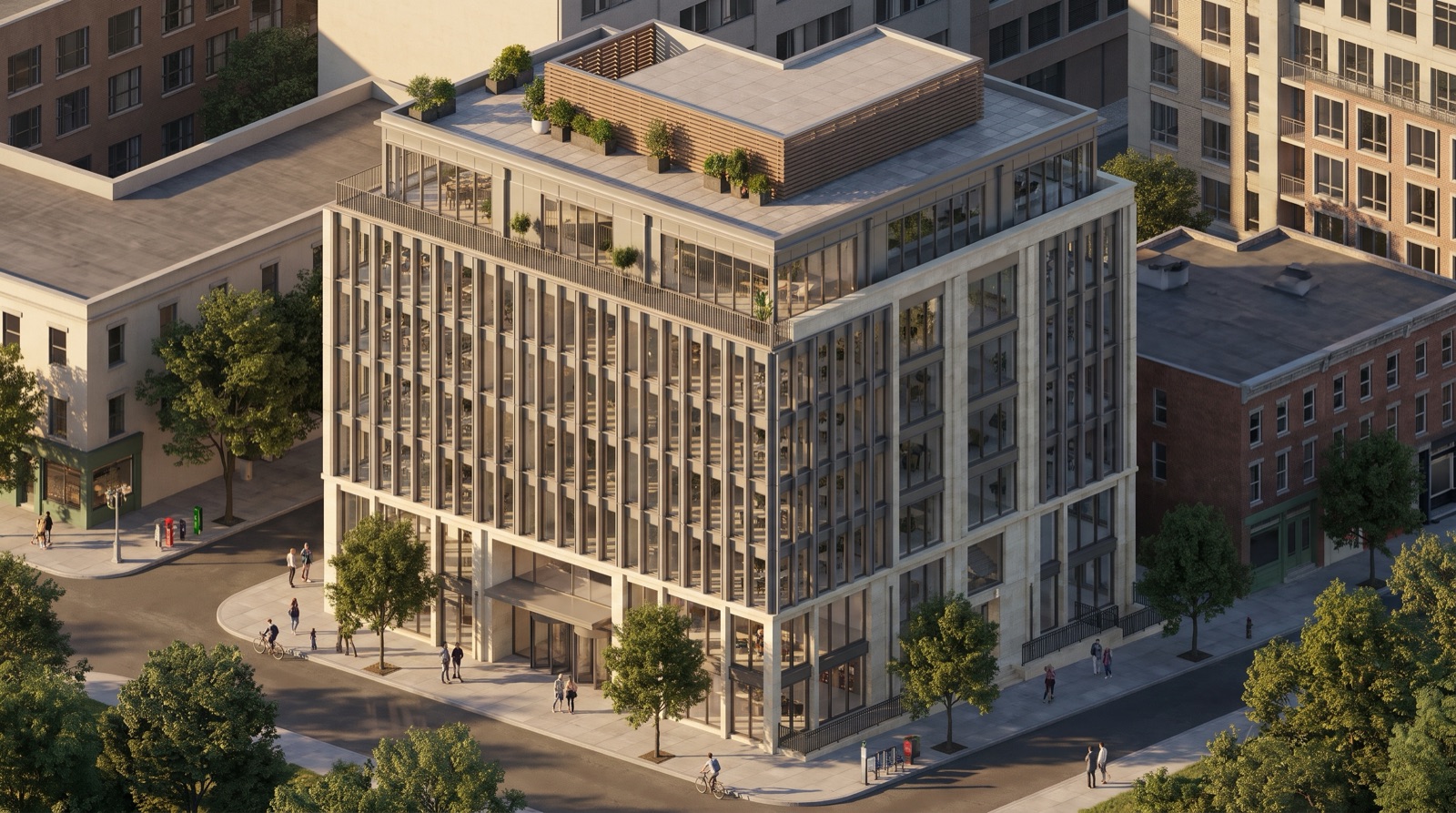
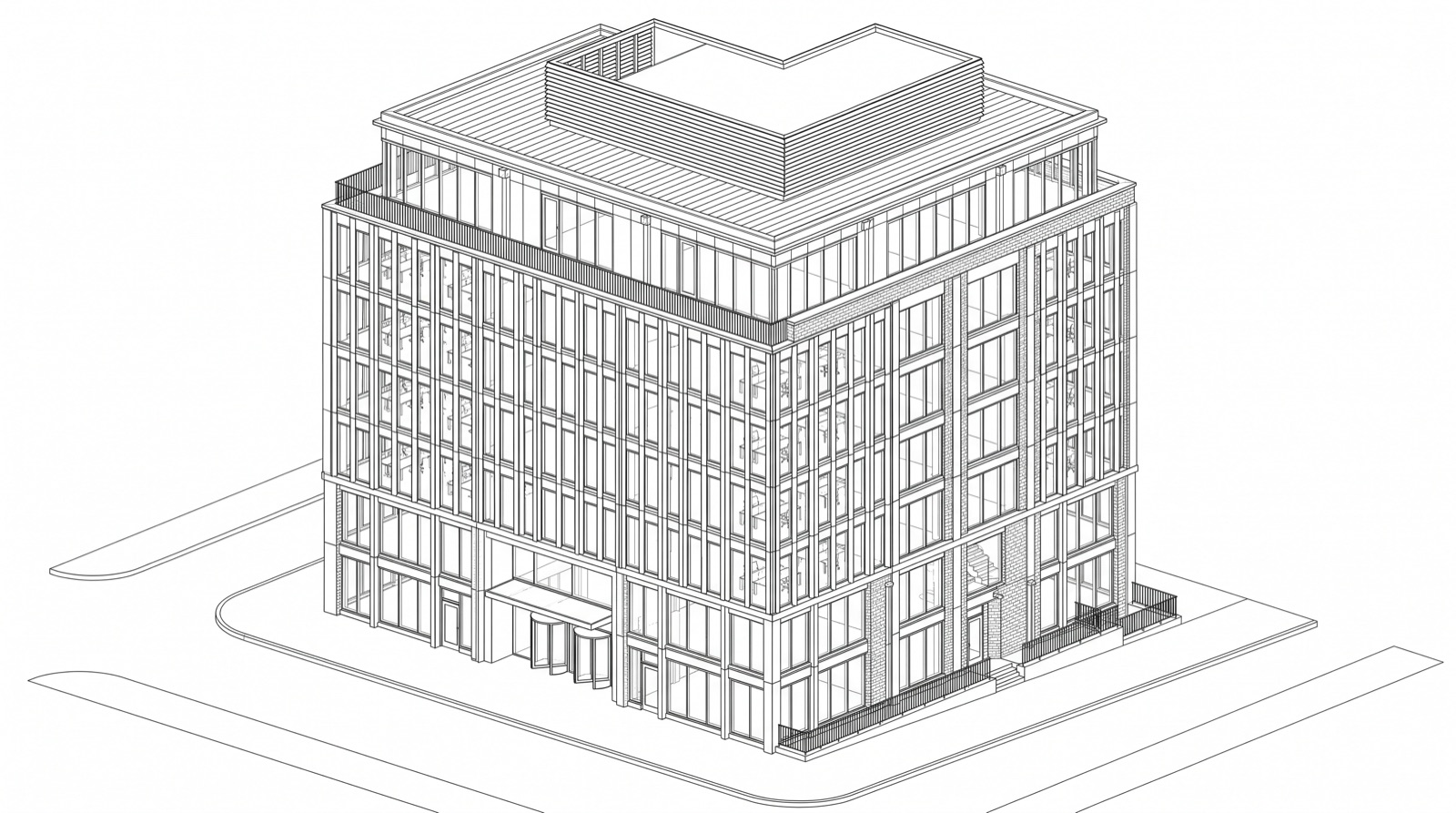
Workplace · from a Hidden Line view
Nine-storey office
“Late-afternoon city light, glass curtain wall with aluminium fins, limestone base, street trees, neighbouring buildings behind.”
Frank · AI renders New
Open a 3D view in Revit and tell Frank the look you want. It repaints the view as a photoreal image, with your camera and your geometry intact. No rendering engine to learn, no rendering license to buy, no leaving the model.
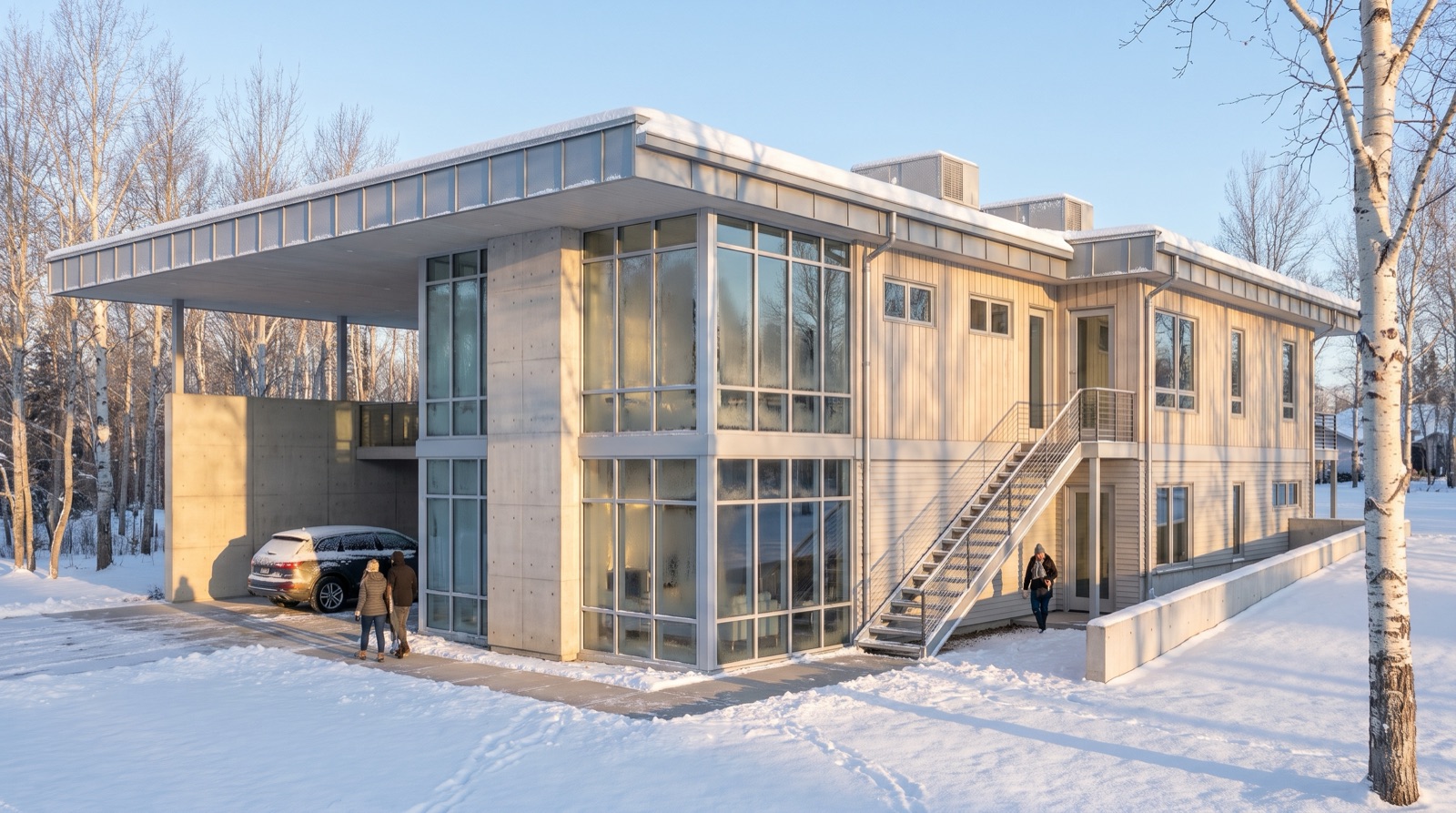
Materials, season and time of day are a sentence each. Compare options with a client in the meeting instead of after it.
Inside Frank
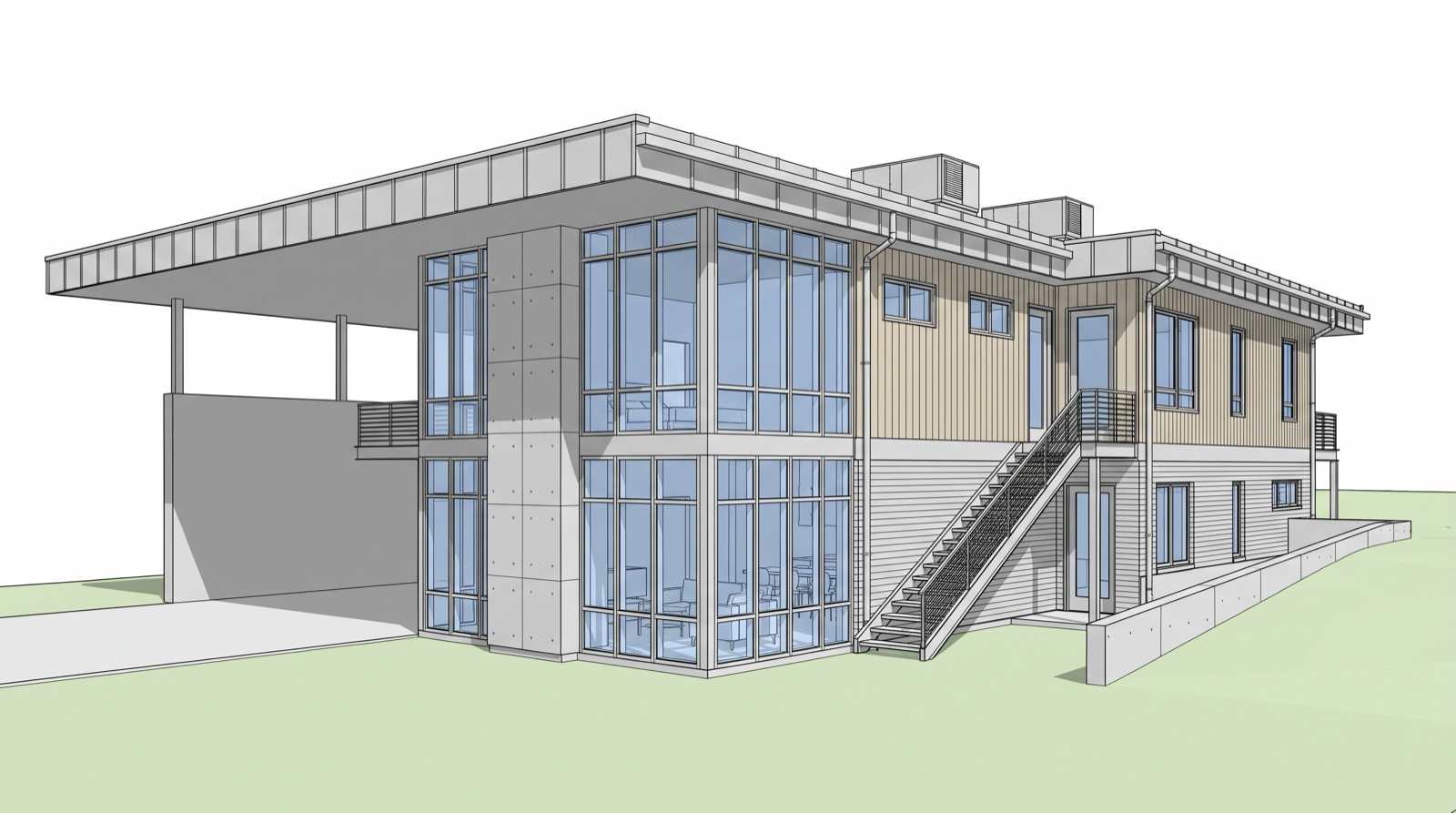
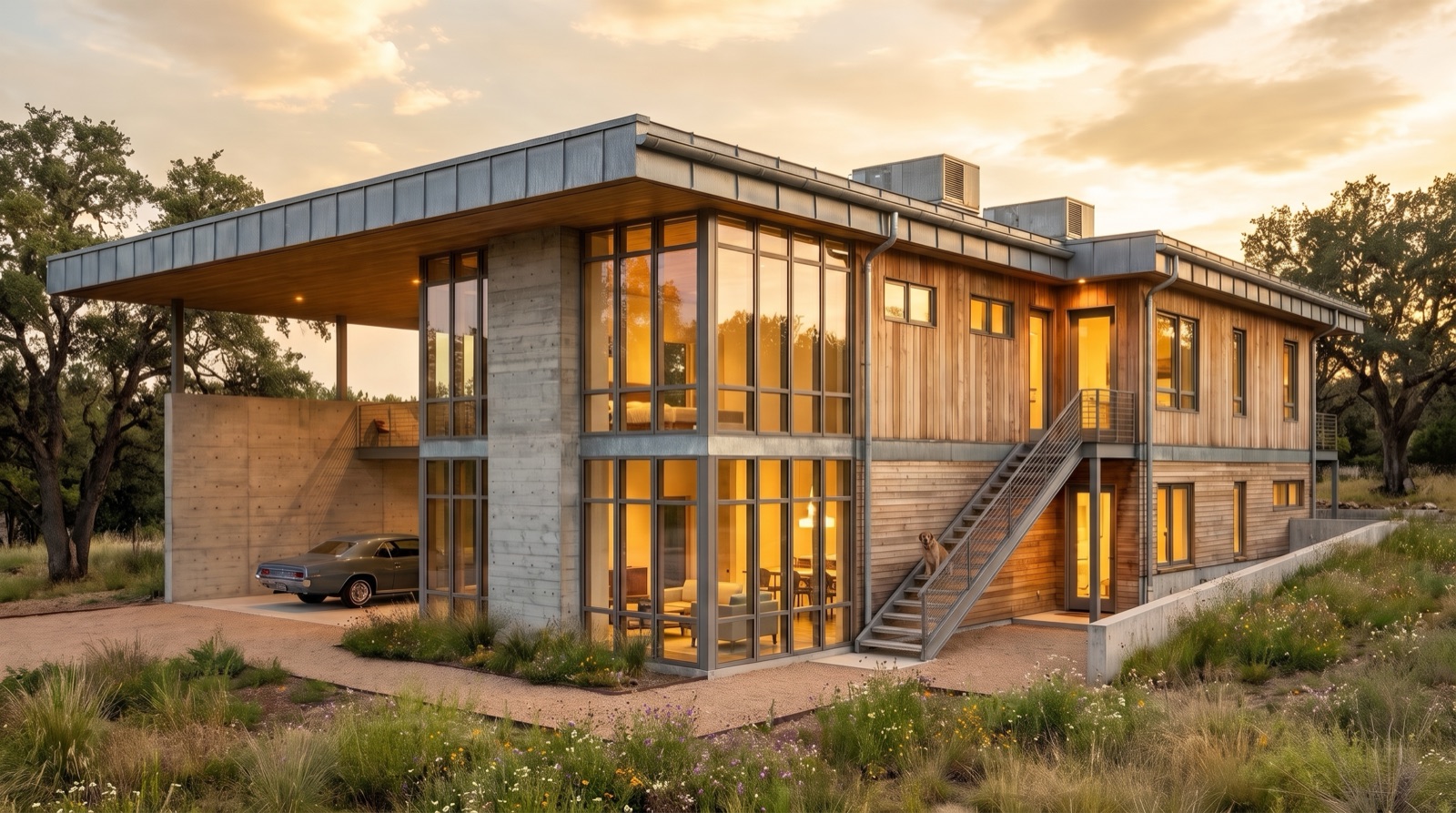
Rendering lives in the same Frank panel your team already uses for dimensions, tags and sheets. Frank captures the view you are in, repaints it, and hands the image back in the conversation.
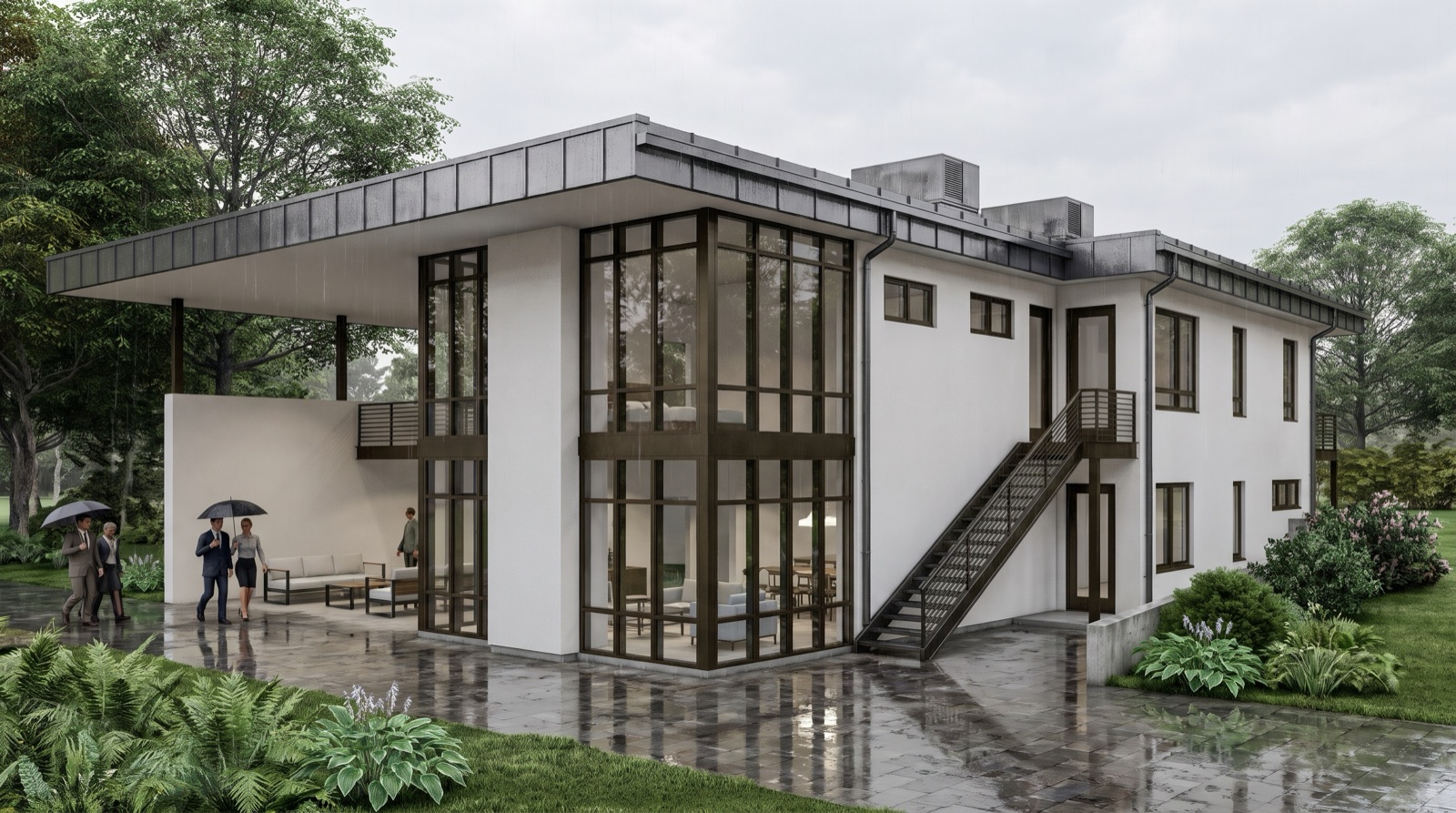
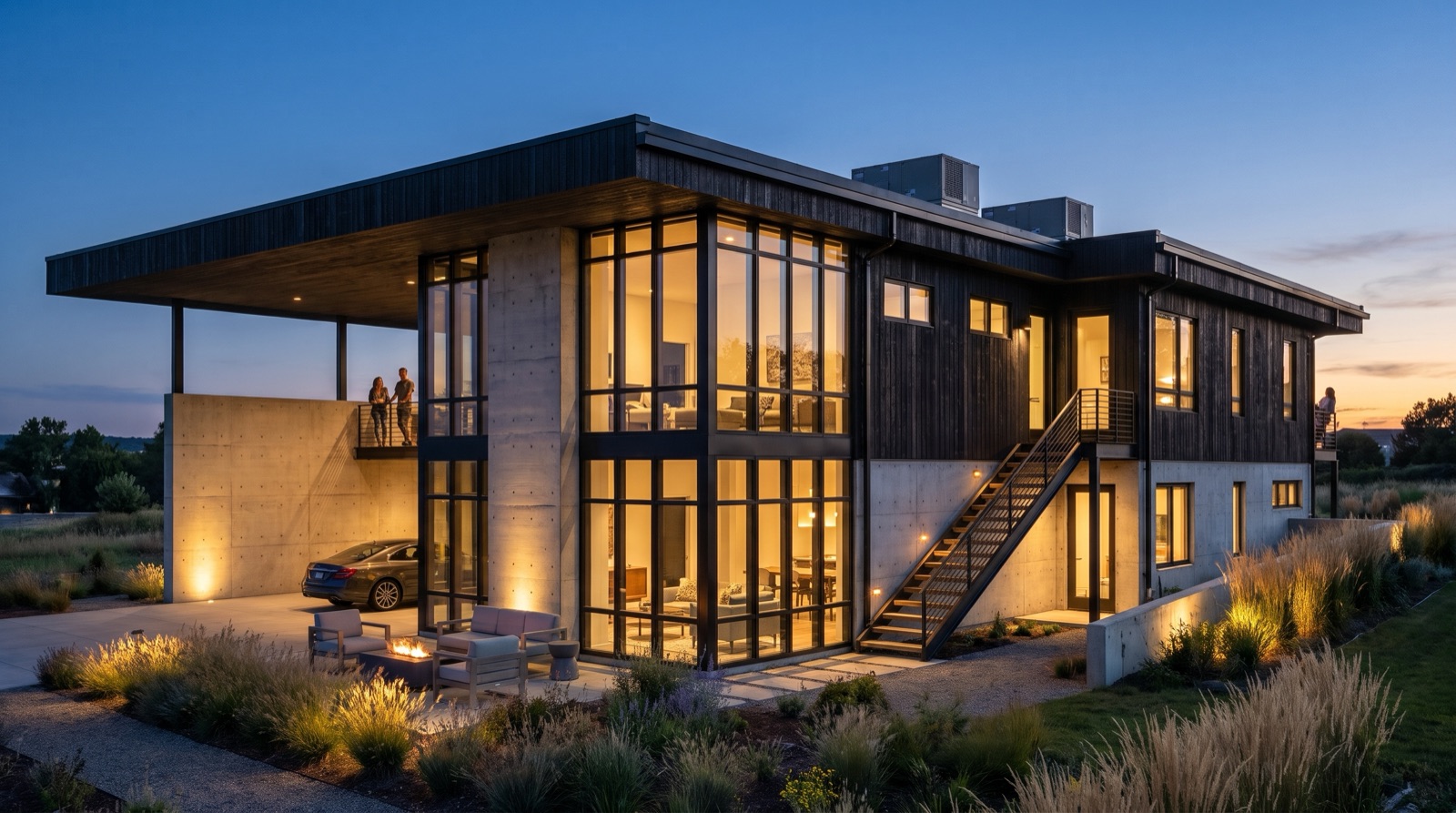
Render this view. Golden hour, board-formed concrete and cedar, native grasses.
AI visualization Here is the render of this view. Same camera and geometry, new materials and light. It is an AI visualization, not a measured view.
Now try dusk with the lights on.
AI visualization Any building type
Each image below started as an ordinary Revit view in a different visual style, from Wireframe to Realistic. The line under it is what was asked for. Switch any card back to the model view, or drag across the mixed-use one, to check the geometry for yourself.
Workplace · from a Hidden Line view
“Late-afternoon city light, glass curtain wall with aluminium fins, limestone base, street trees, neighbouring buildings behind.”
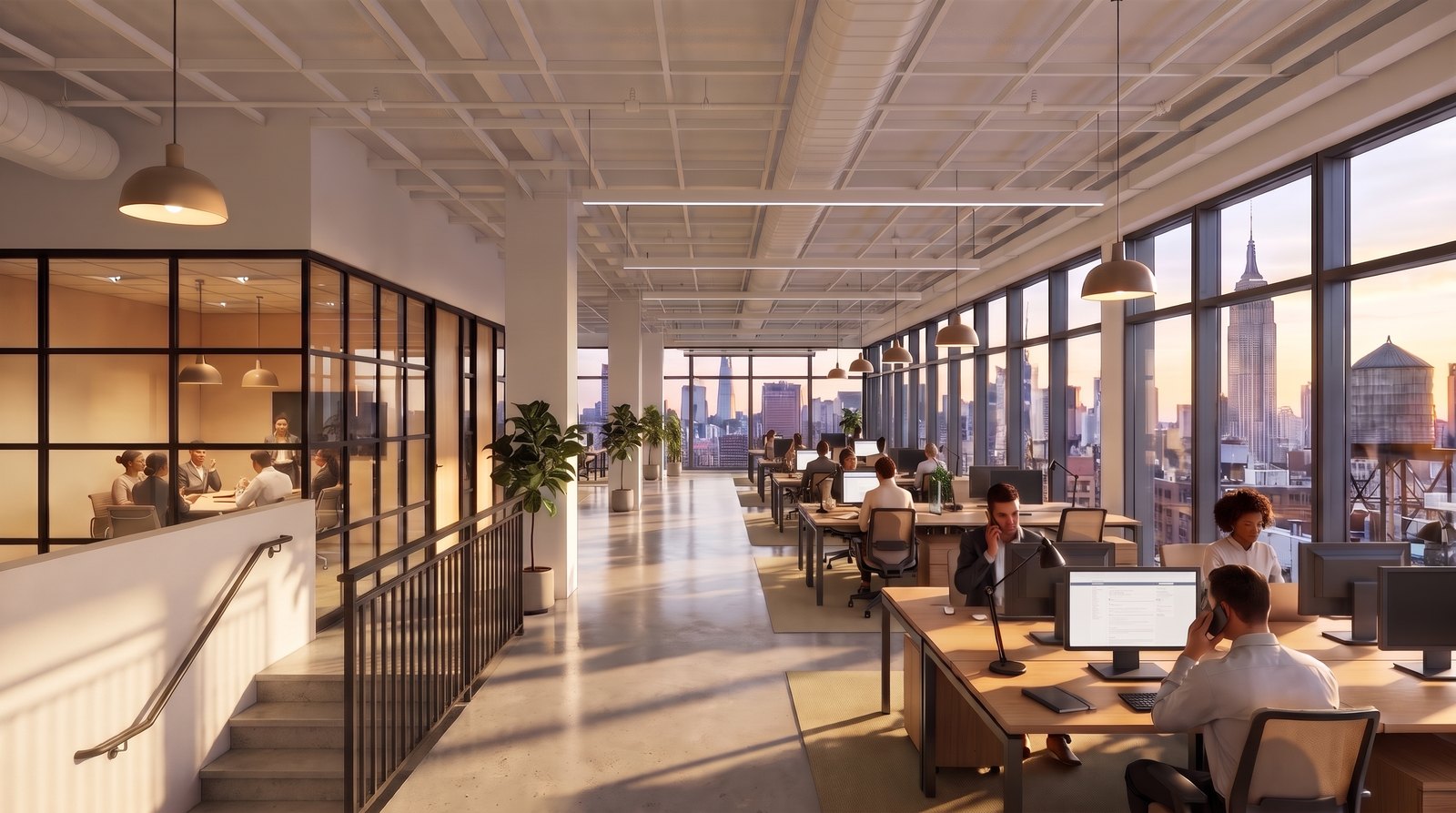
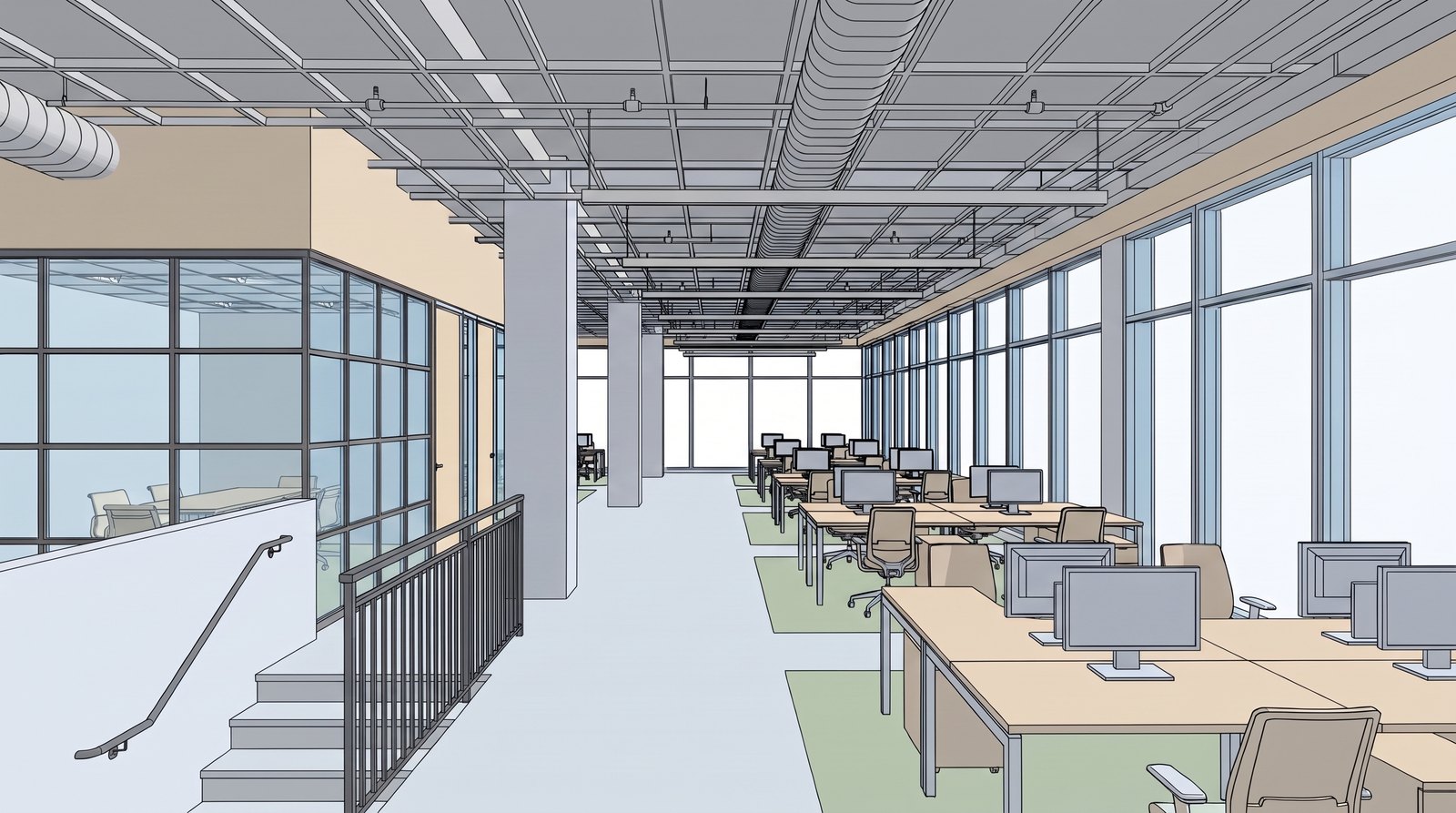
Interior · from a Shaded view
“A New York City office in late-afternoon light, the Midtown skyline through the windows, polished concrete, oak desks, black steel-framed glass.”
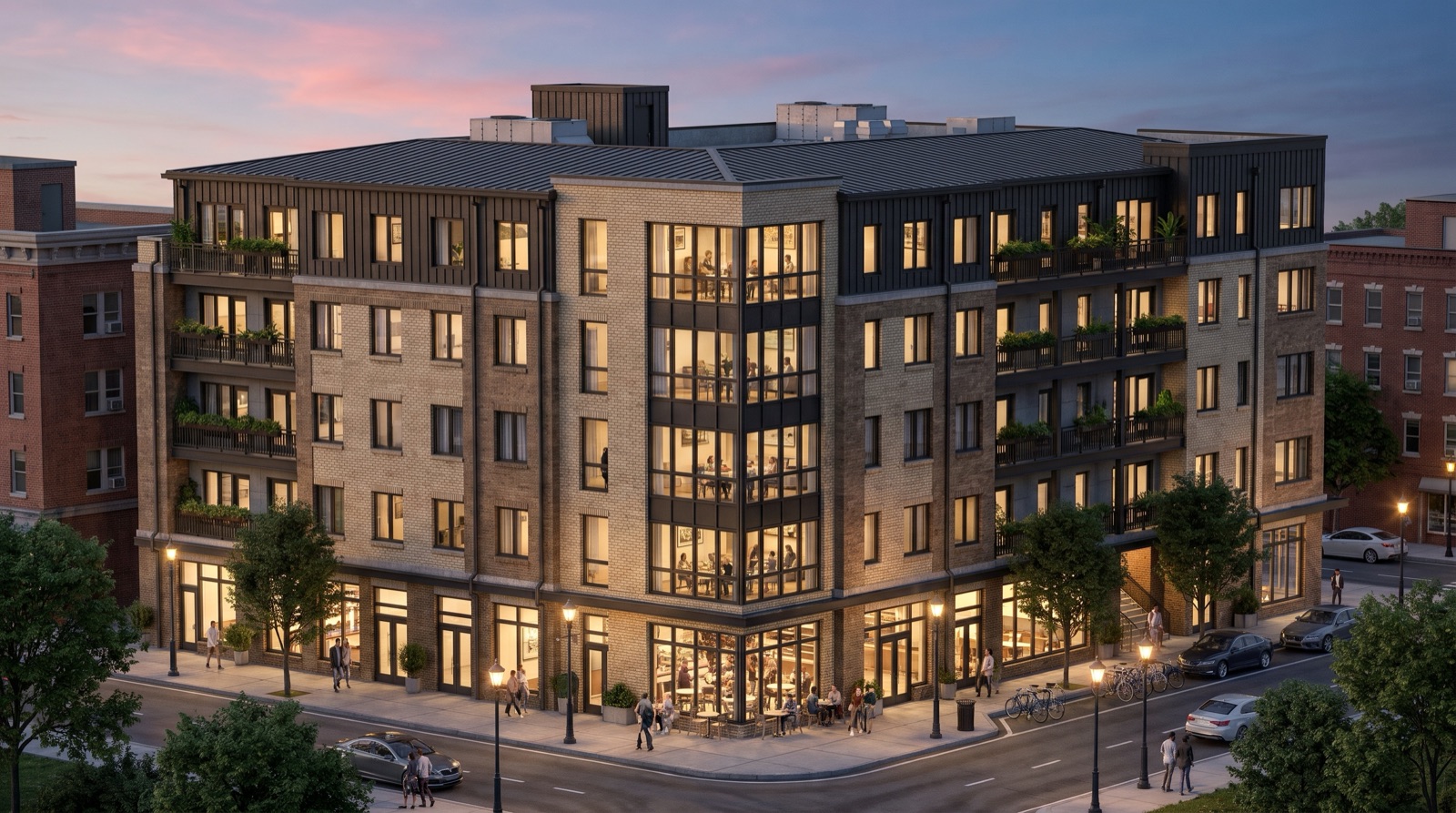
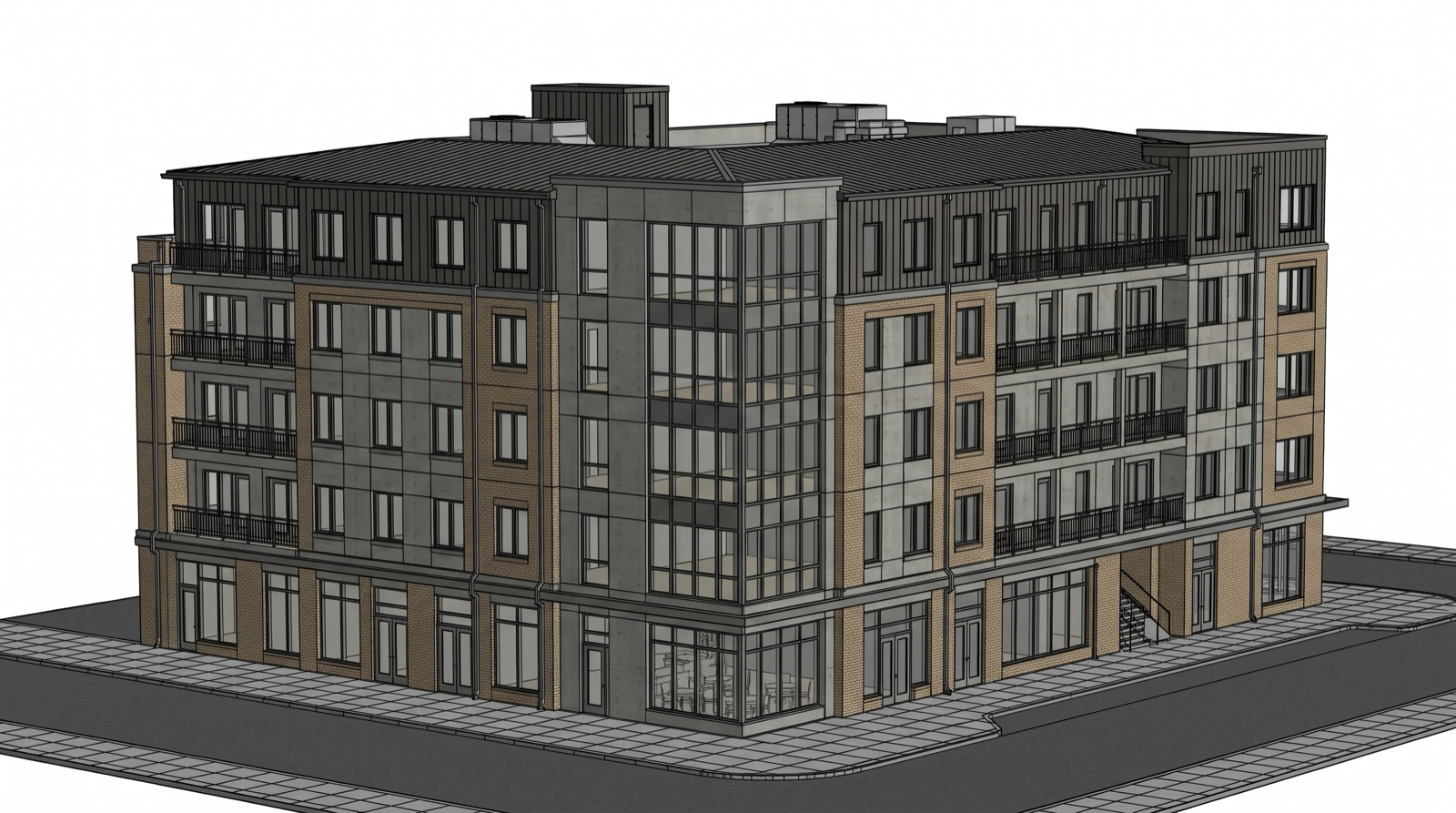
Multifamily · from a Realistic view
“Early evening in a lively neighbourhood, brick with dark metal balconies and planters, warm lit shopfronts, café tables, soft pink sky.”
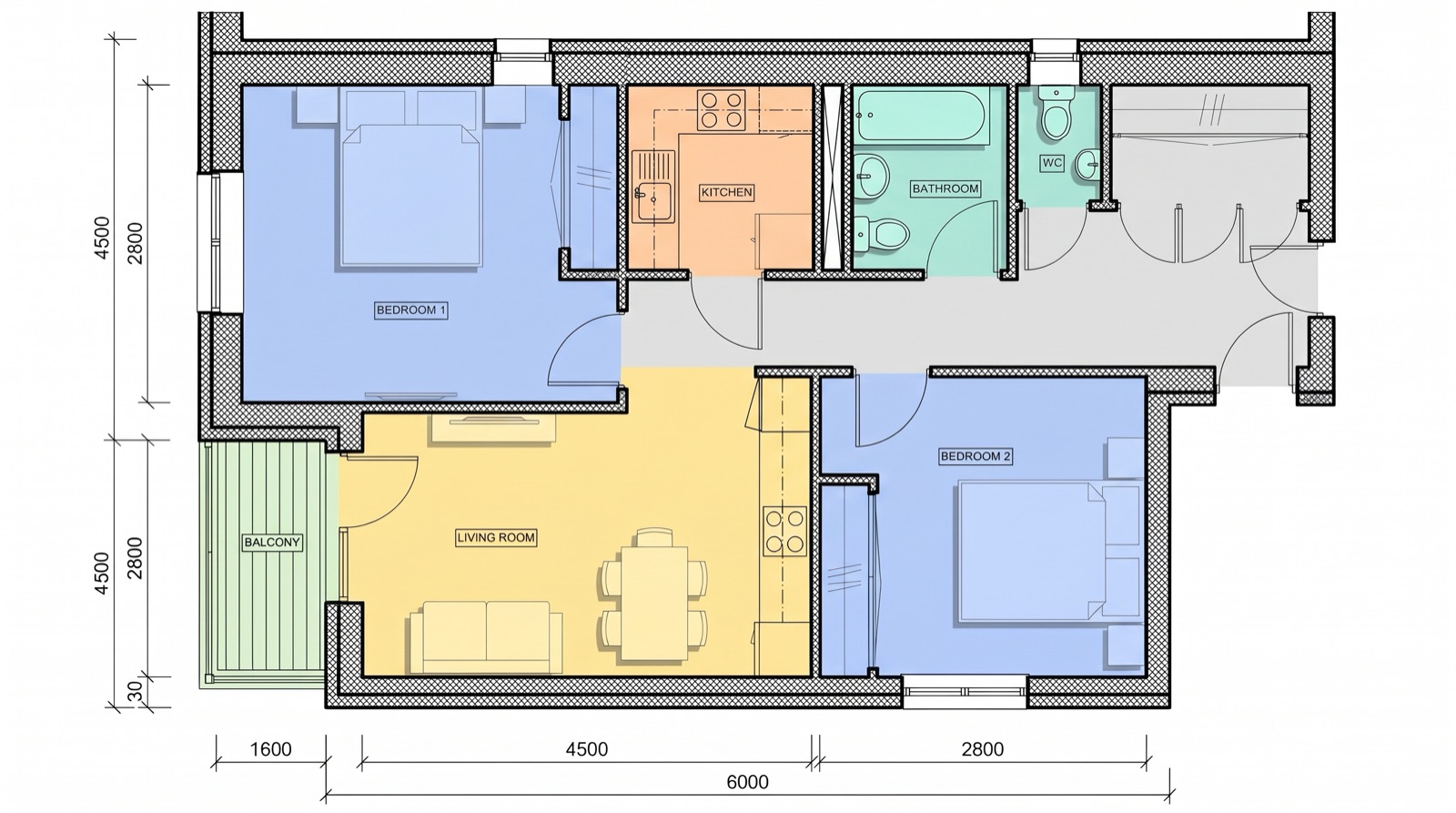
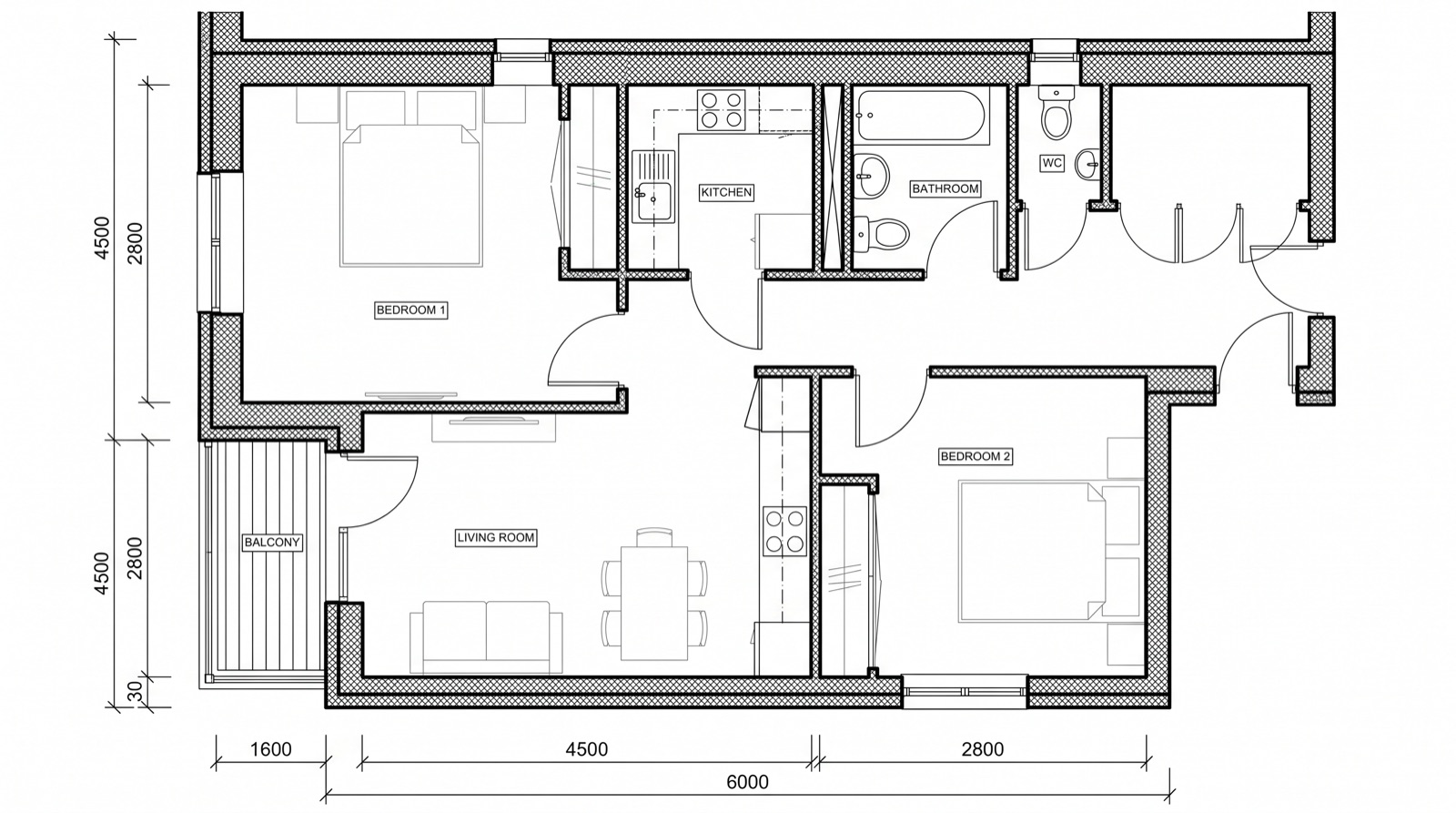
Floor plan · from a Floor plan view
“Colour each room by type: bedrooms blue, living and dining yellow, kitchen orange, bathrooms green, circulation grey. Keep every line and dimension.”
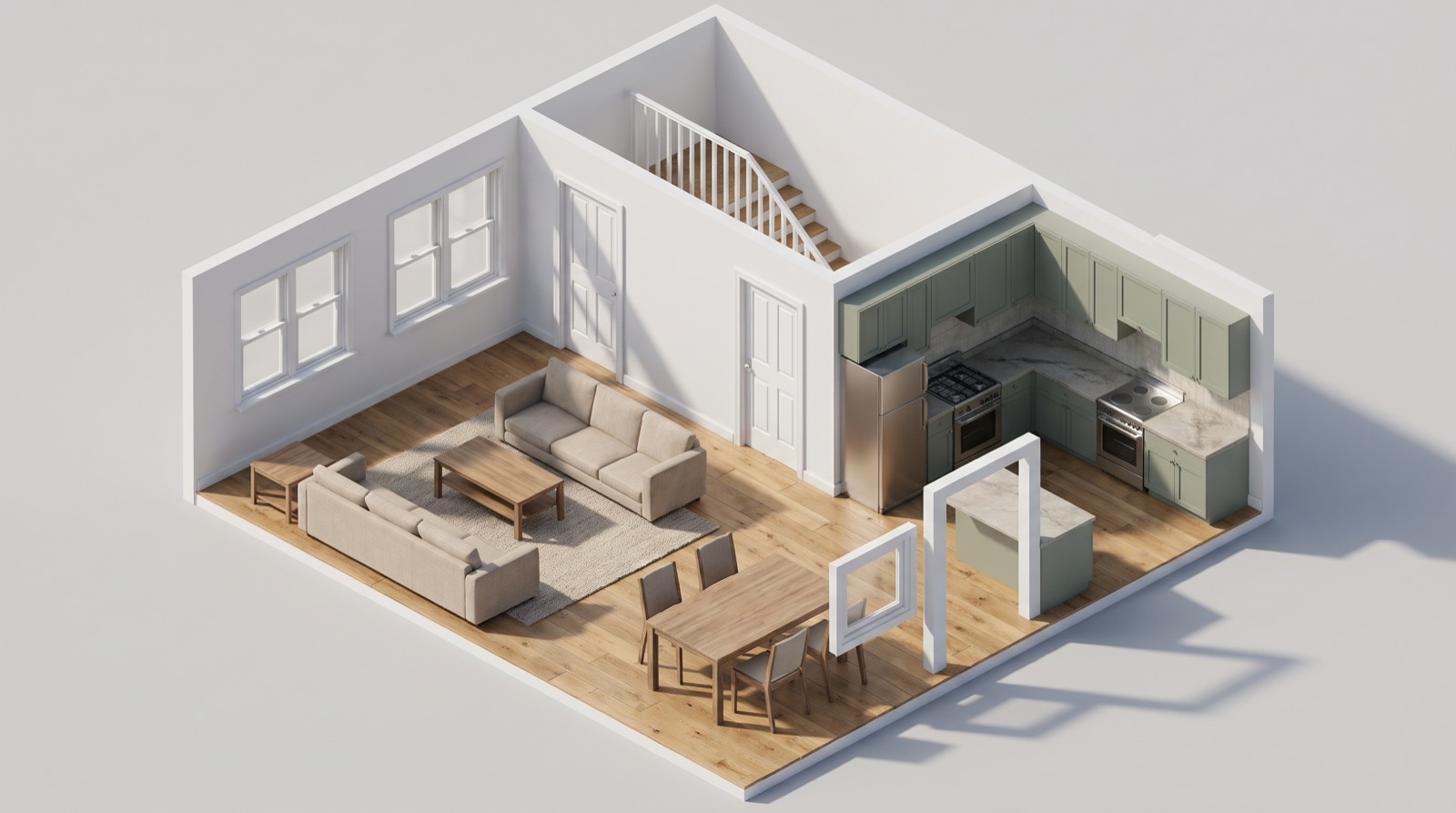
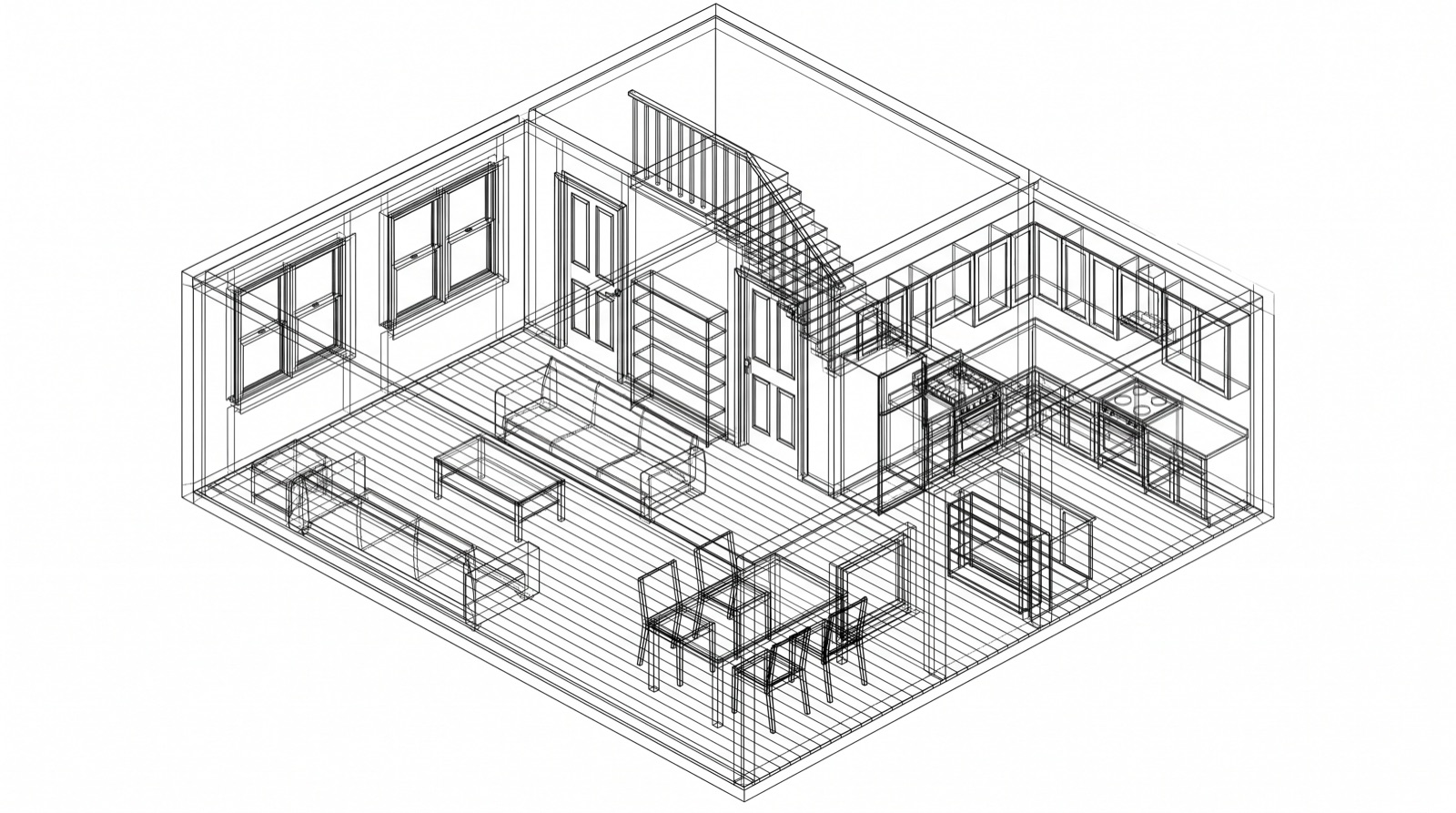
Isometric · from a Wireframe view
“A realistic cutaway of the room: oak floorboards, white walls, sage kitchen cabinets, soft daylight with real shadows, plain studio background.”
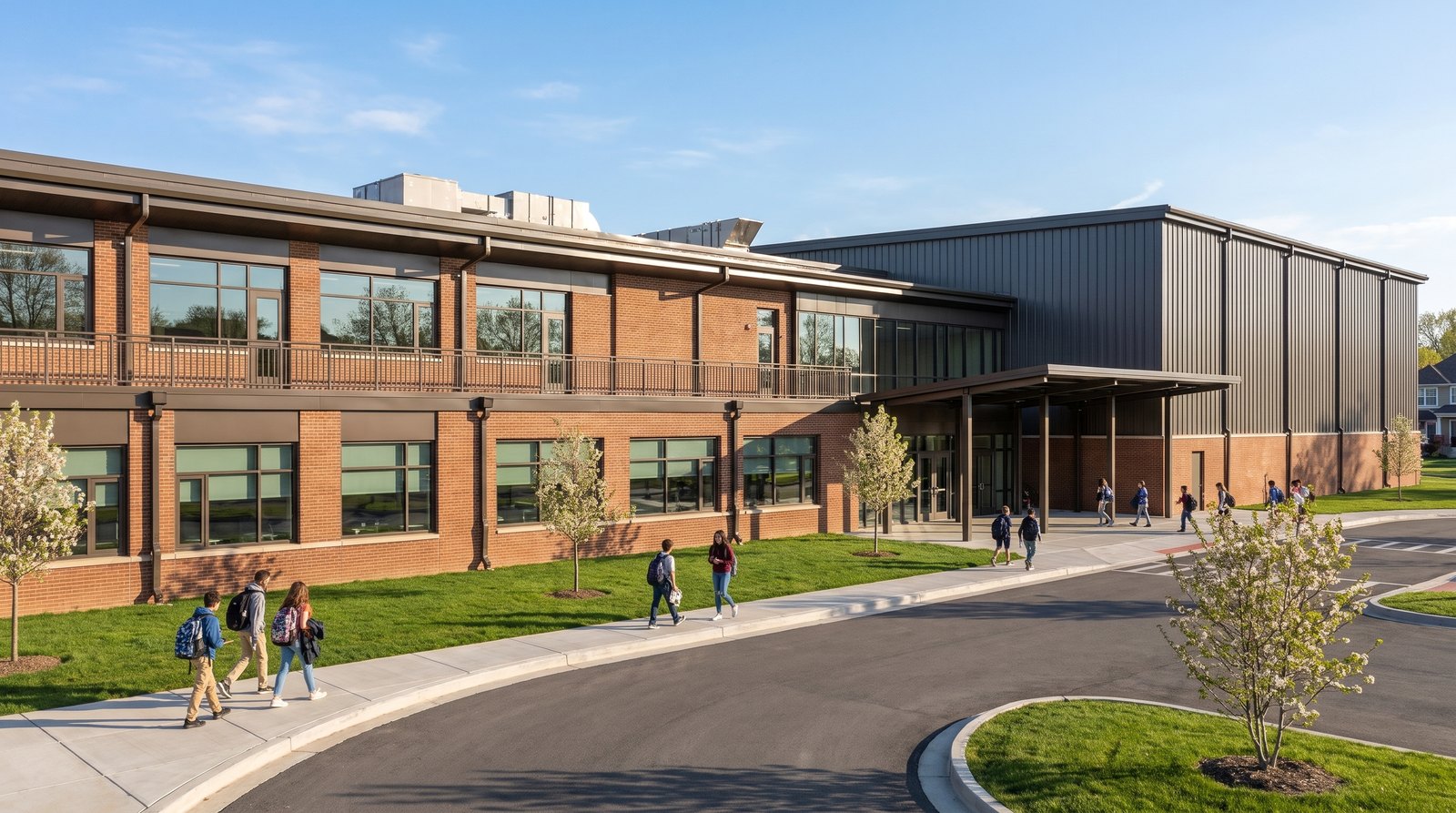
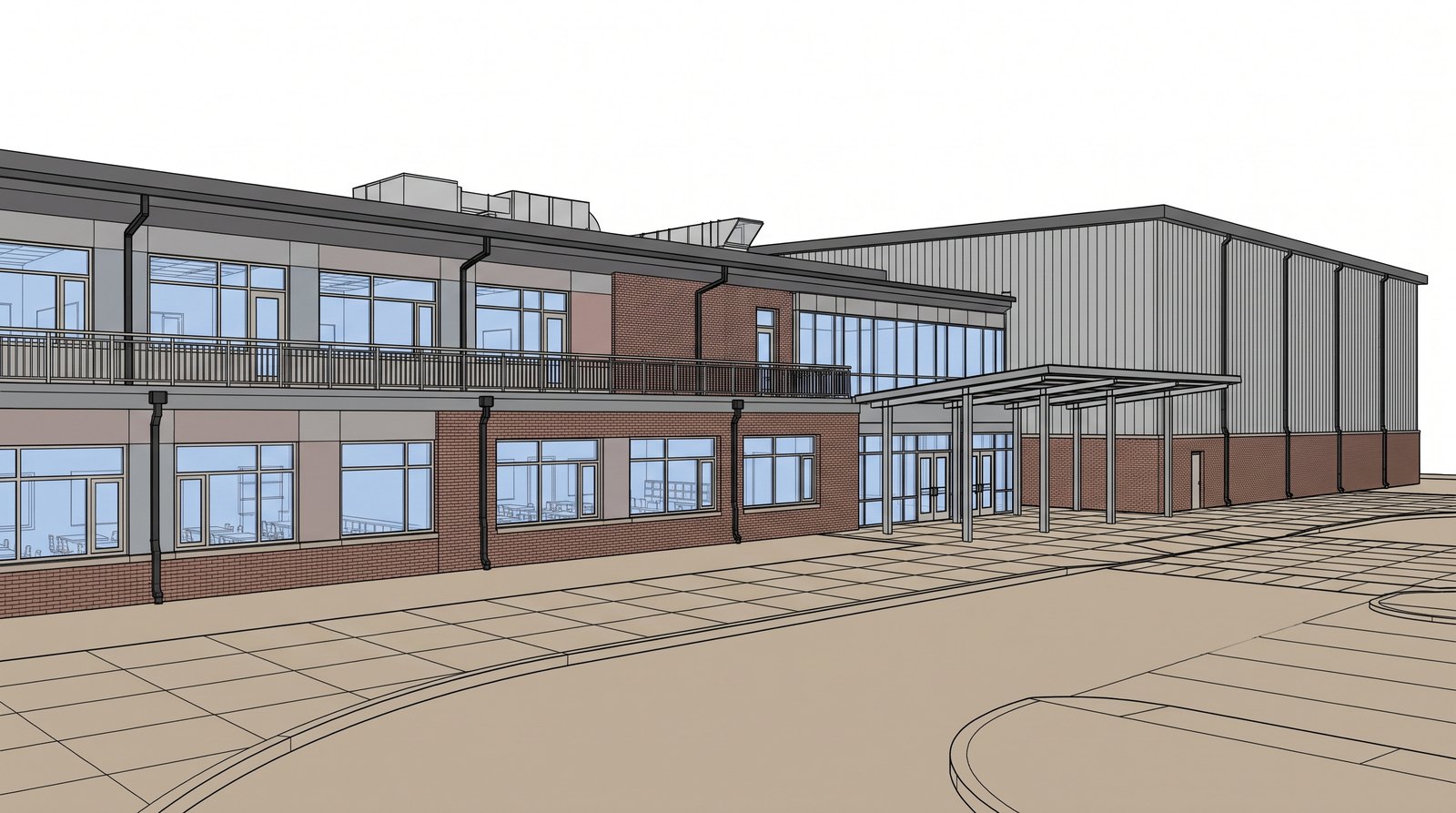
Education · from a Consistent Colors view
“Bright spring morning, red-brown brick, standing-seam metal on the gymnasium, students arriving, a residential neighbourhood behind.”
Not only photoreal
Some conversations go better with a drawing than a photo. Ask for a sketch and Frank redraws the perspective, the elevation and the plan in the same hand.
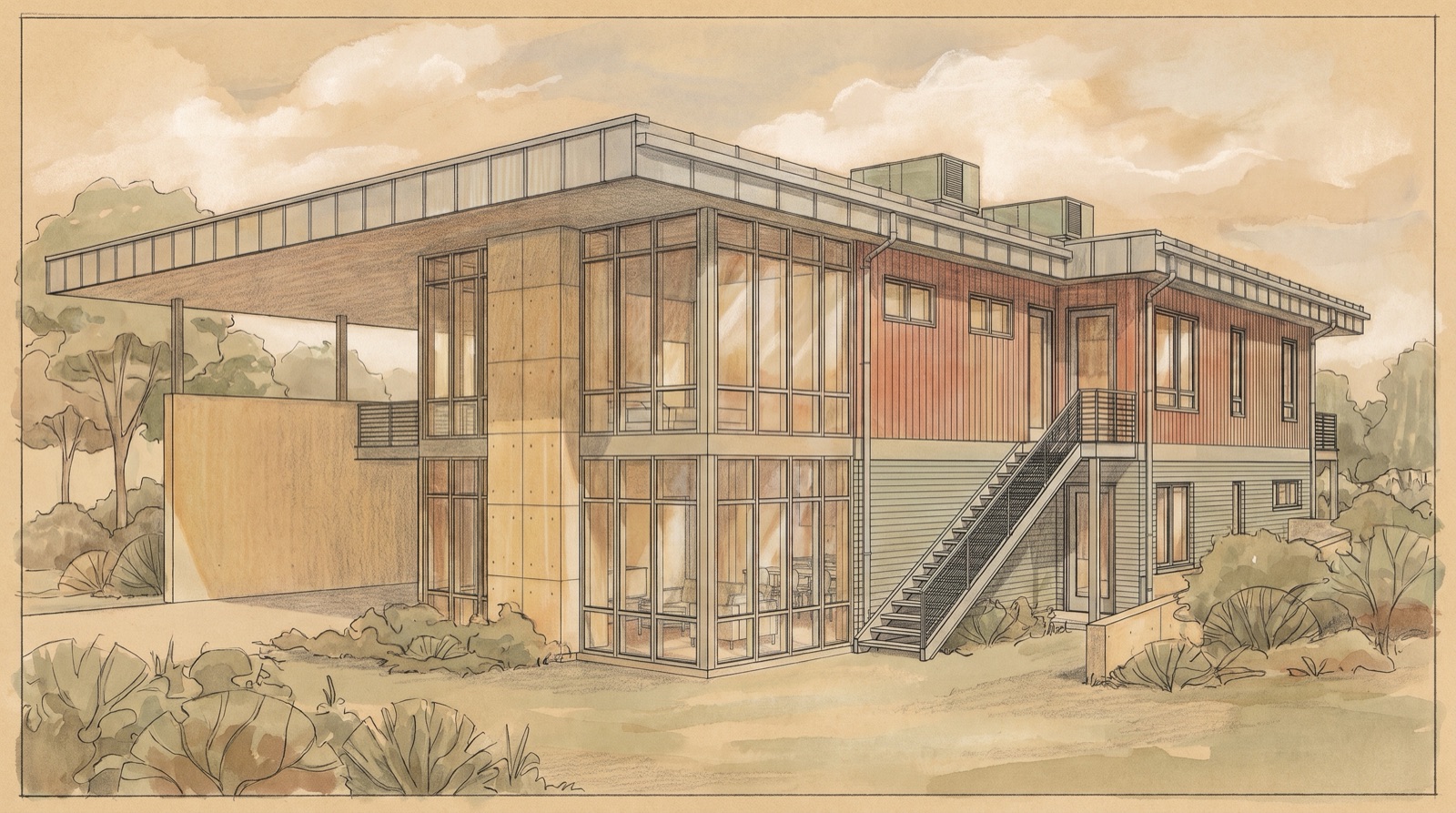
Perspective · from a Shaded view
“Hand-sketch rendered in colored pencil, ink, and watercolor, influenced by Japanese prints with warm earth tones.”
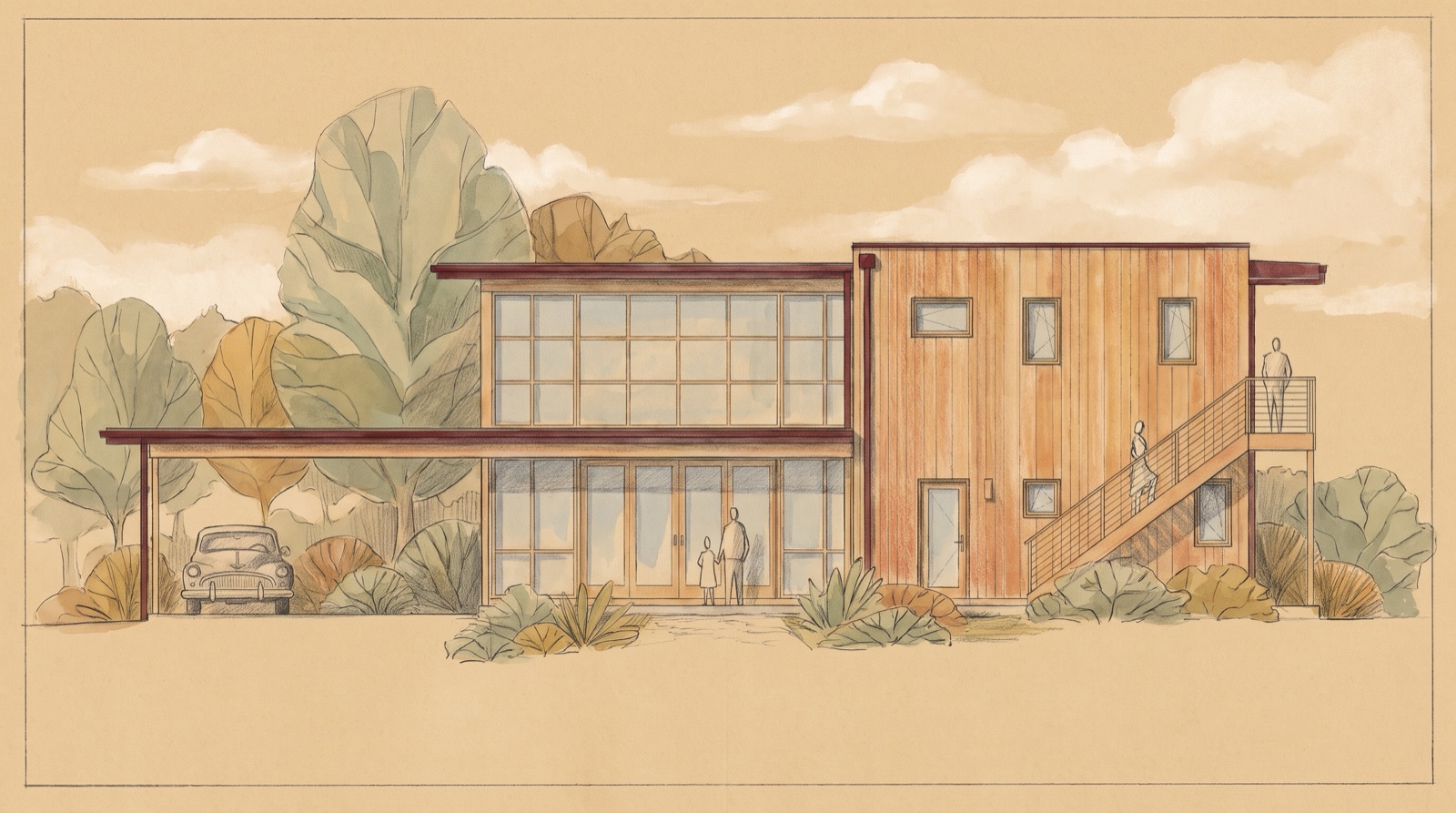
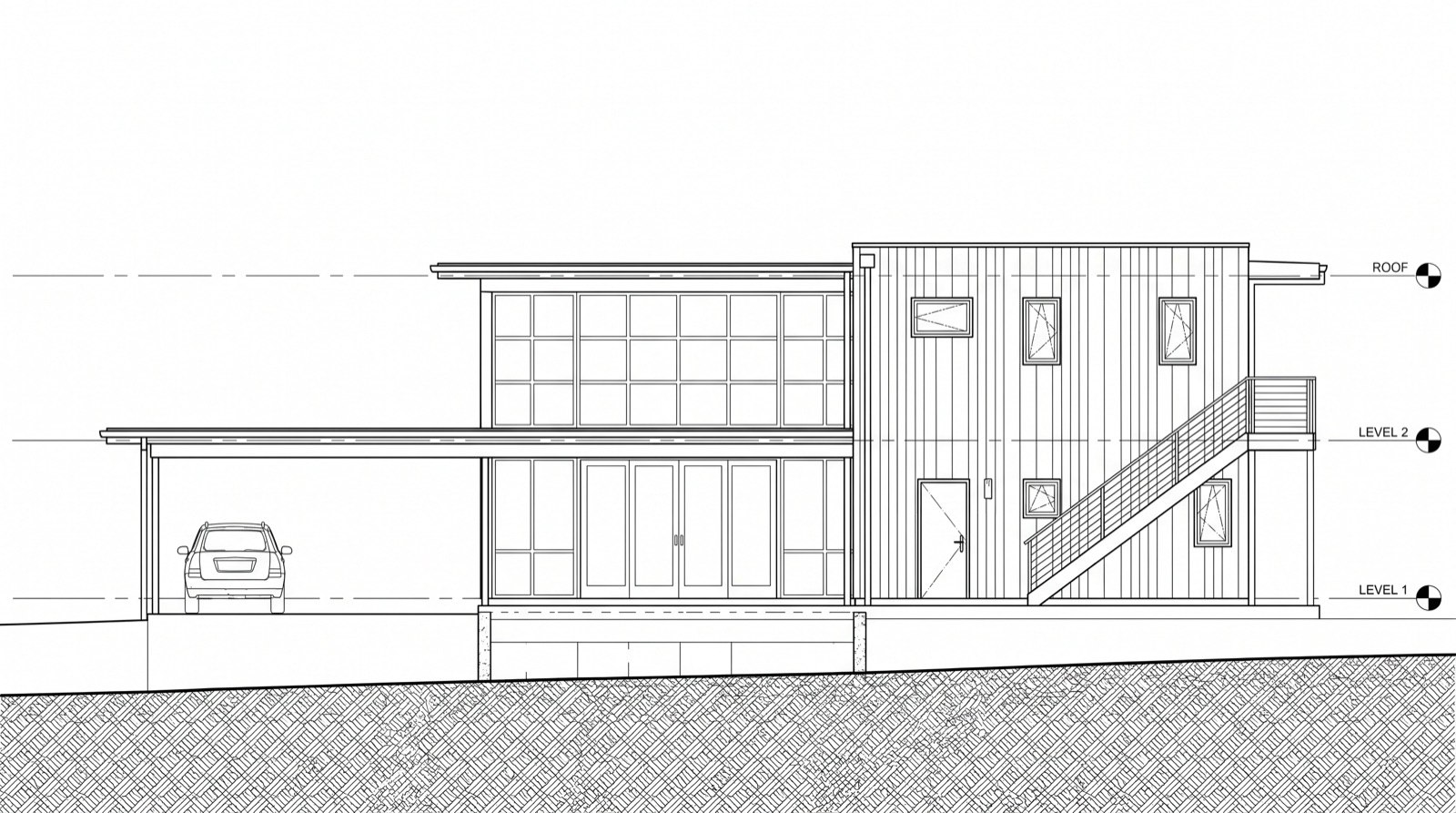
Elevation · from a Hidden Line view
“Hand-sketch rendered in colored pencil, ink, and watercolor, influenced by Japanese prints with warm earth tones.”
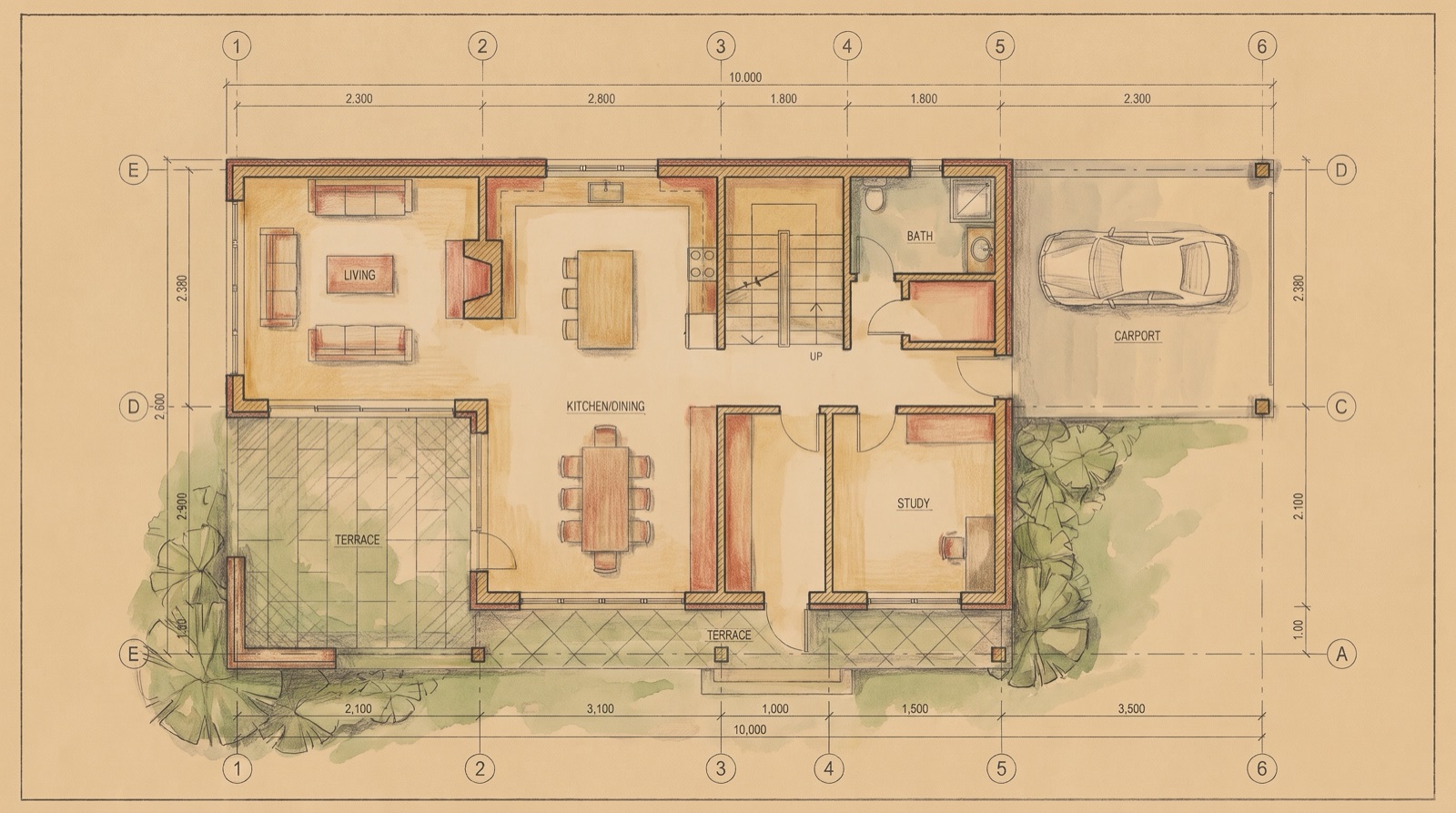
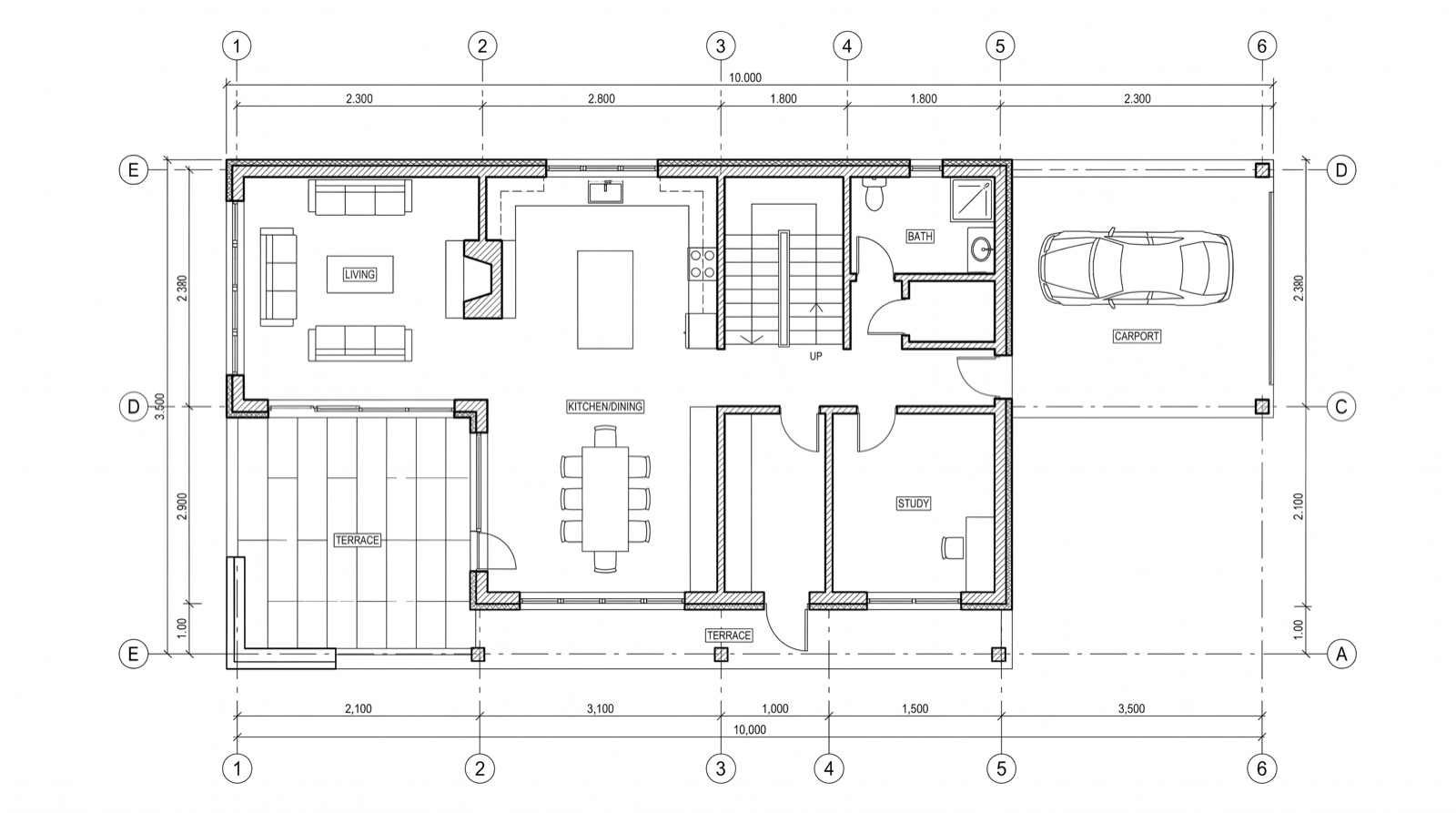
Floor plan · from a Hidden Line view
“Hand-sketch rendered in colored pencil, ink, and watercolor, influenced by Japanese prints with warm earth tones.”
The engine is Frank's job
Rendering used to mean choosing an engine, learning it and paying for it. Frank lets you pick the image model that fits the result you want and what you want to spend, and it is all inside your Frank credits.
Frank offers a choice of leading image models, such as Nano Banana. Choose the one that suits the image you are after, from a quick option study to the picture you will present.
A faster, lower-cost model for testing ideas, a higher-quality one for the image that goes in front of the client. You decide the balance, render by render.
No scene setup, material libraries or light rigs to master, and no separate rendering license. Renders draw on the same Frank credit bundle as everything else Frank does.
How it works
Set the camera the way you want the image framed. Frank renders the view you are in.
Describe the look in your own words: materials, time of day, season, landscape, people.
Say “make it warmer” or “try dusk” and Frank reworks the last render. Save the one you like with one click.
Frank keeps
Frank changes
Questions
No. Frank keeps the camera, the building geometry, the openings, the roof and the proportions of the view, and changes only materials, lighting, sky, landscape and entourage. Nothing is written back to your model.
For most everyday images, no. Design reviews, client updates and material options no longer need a scene set up, materials mapped or lights placed, and there is no rendering software to learn or license. Frank works from the view you already have. Firms that produce high-end marketing imagery or animations may still keep a dedicated pipeline for that work.
Perspective and 3D views give a photo of the building. A plan, section or elevation stays a drawing: Frank can colour it, shade it or turn it into a hand sketch, but it will not become a photo, and Frank tells you so before it renders one. Any Revit visual style works as the starting point, from Wireframe to Realistic.
No. Every render is labelled an AI visualization. It is a picture of design intent, not a measured or construction-accurate view.
Renders are included in your Frank credit bundle, with no separate rendering license. Each render draws credits like any other request, and the image model you pick sets the balance of quality and cost. Every firm starts with 1,000 free credits.
Download Frank, open a 3D view and ask for a render. Your firm starts with 1,000 free credits.